
Choose your label from bol, Vinted, PostNL or DHL and press Print. The app makes it fit your label, even when it is on an A4 page.
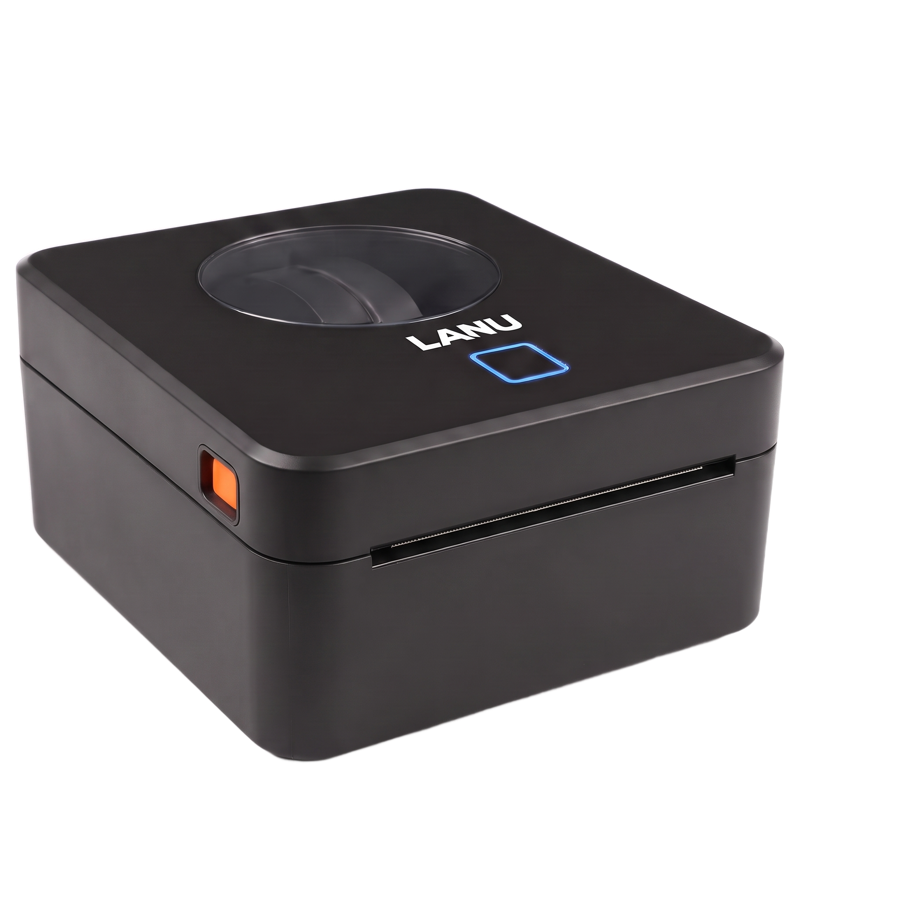
Setup help
Choose how you want to print. Haven't loaded the label roll yet? Check the manual first.
iPhone and Android · wireless
Tip: share your shipping label from your email or browser straight to Lanu Printer.
Bluetooth and USB · print from any program
With the included USB cable you can also print wired, without Bluetooth. You can also drag a file onto the printer icon at the top right.
Bluetooth · open with and drag
Printing with the USB cable on Windows? Use the USB driver for Windows.
Web app · Mac, Windows, Chromebook or a work laptop · wireless
What the app does
Simple to use, with the default settings already set up right.
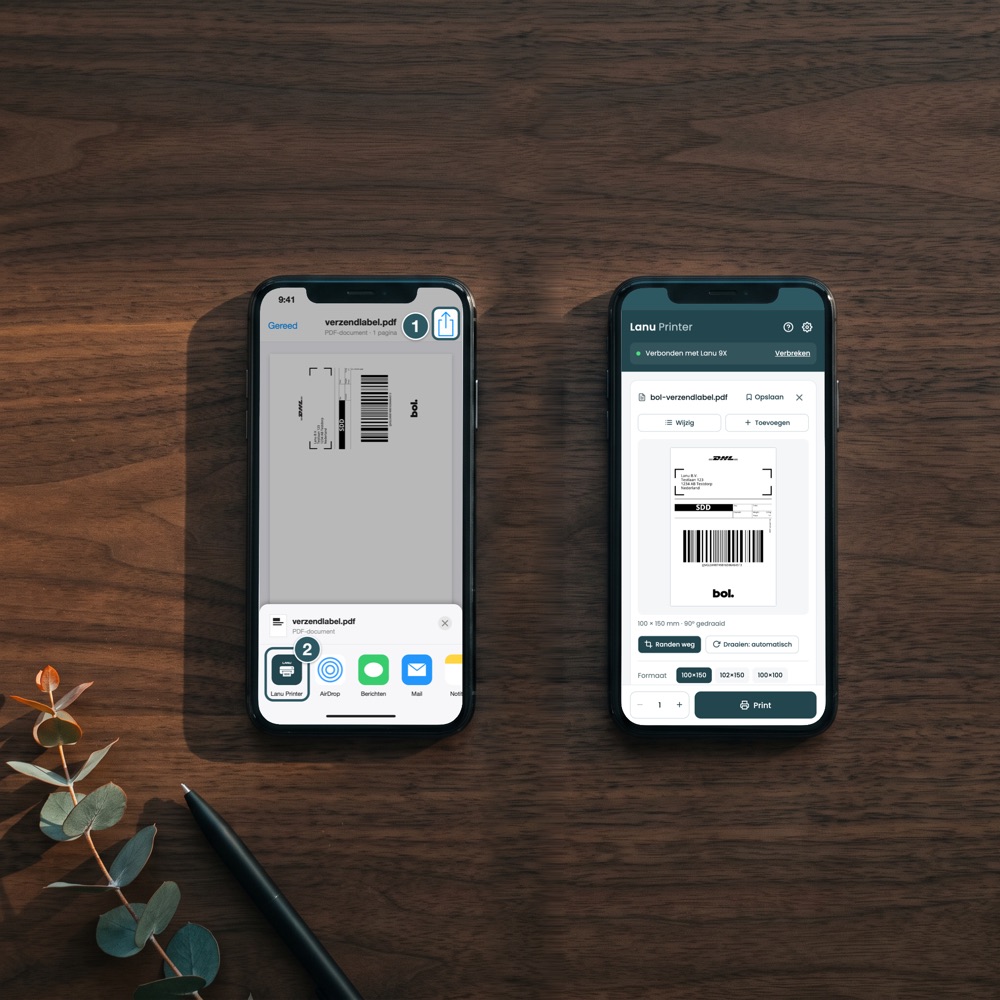
Open your shipping label, tap the share button and choose Lanu Printer. No need to save the file first.
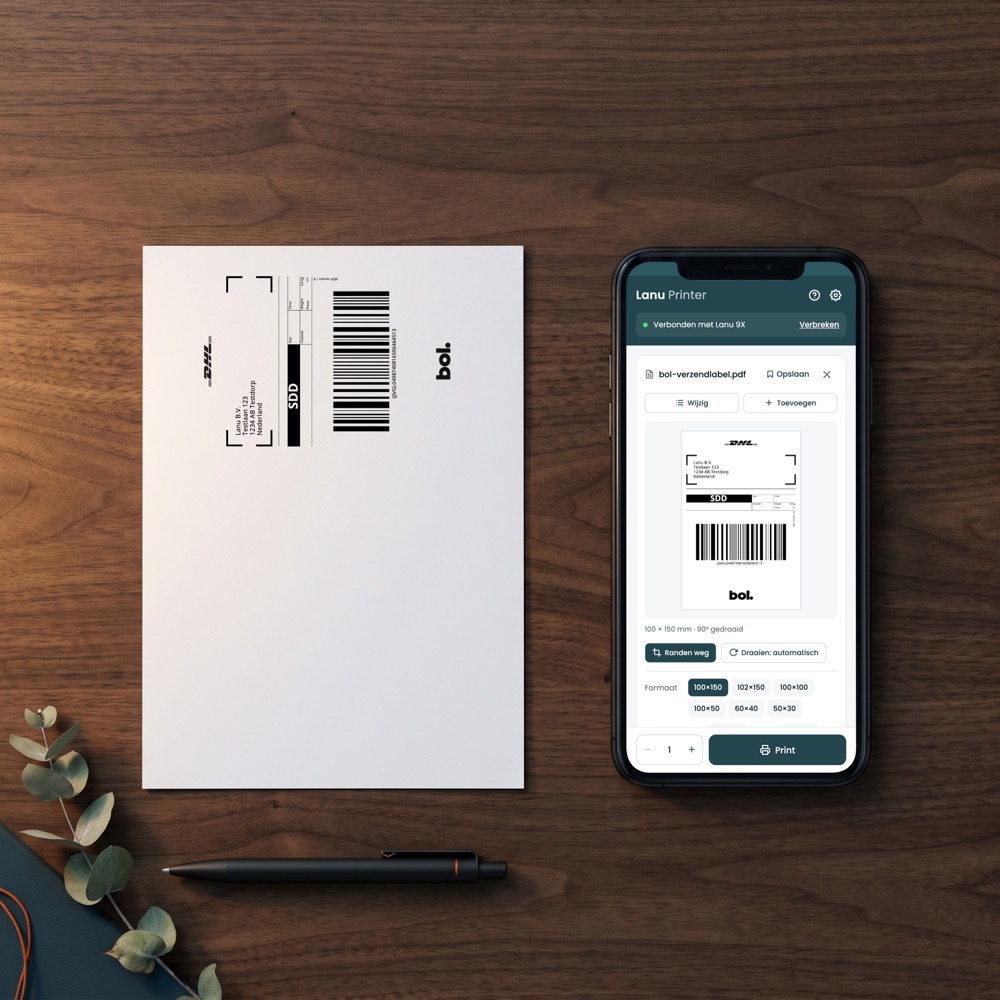
Is your label on an A4 page? The app removes the white edges and rotates the label when that fits better.
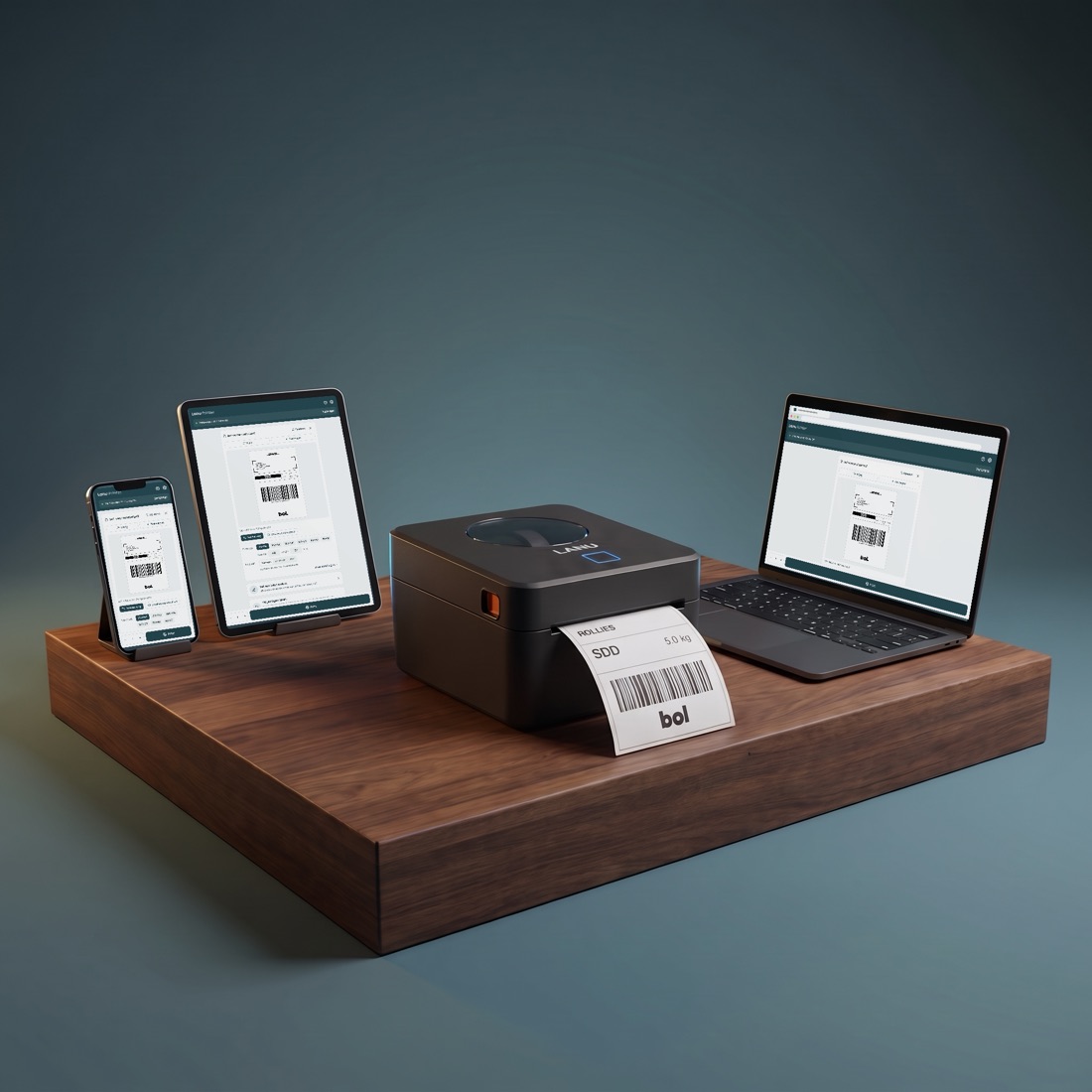
Print from your phone with the app, on your Mac with the program for Mac, or on any computer with the web app.
Paste your EAN and the app creates the barcode, with text.
Choose which pages of a PDF to print and how many times.
Save labels and print them again later with one tap.
Your labels stay on your own device. No account needed.
Frequently asked questions
No, Safari does not support Bluetooth for websites. Use Google Chrome or Microsoft Edge. On iPhone, use the app from the App Store; on a Mac, the program for Mac.
Check that the printer is on (blue light) and Bluetooth is on. The printer can only be connected to one device at a time: close the app or website on your other phone or computer. Still not working? Turn the printer off and on again.
Check the size in the app and calibrate the printer: hold the FEED button for 5 seconds until the light flashes red, then release it.
Choose "Darker" under Quality. The printer then prints blacker and a little slower.
Send us an email or WhatsApp. We usually reply within one working day.